- 1800 72 27 28
- info@smartappbs.com.au
- Suite 20, 27 Hunter Street, Parramatta NSW Australia
ISO 27001 Certified
We integrate CAD software with Business Central in order for you to sync your engineering Bill of Material (BOM) with production BOM with ease and accuracy. It saves you from manual works and increase efficiency of engineers to a great extent. To do the integration, we use CADLink. CADLink is a widely used CAD ERP link tool that allows your design engineers to concentrate on what is most important – design work. Multiple data entry is saved through CADLink’s real-time CAD ERP link, allowing designers to access data inside ERP systems. CADLink uses a real-time, bidirectional link to pull and push information from your CAD model and ERP system.
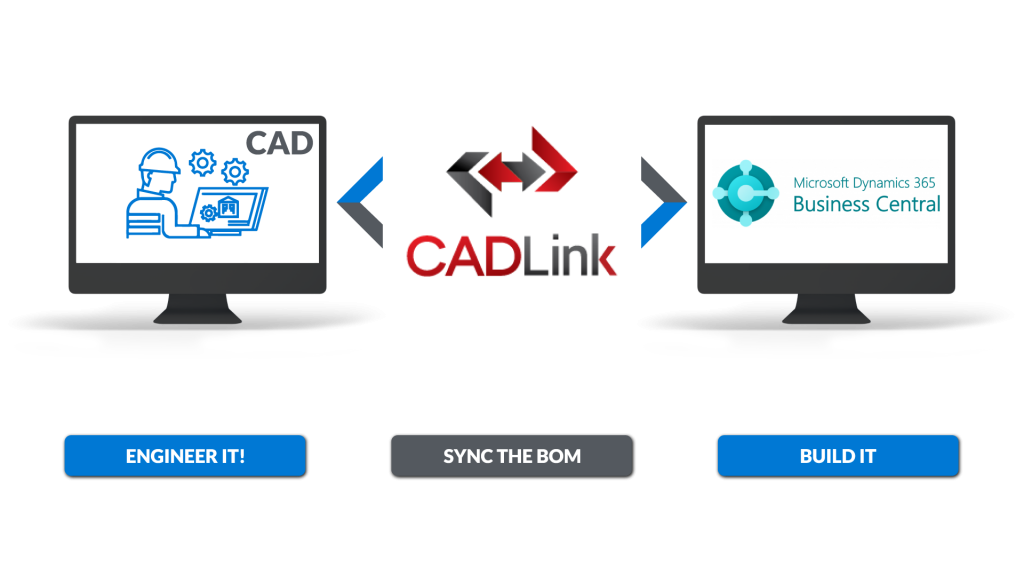
CADLink is certified for Microsoft Dynamics 365 (CFMD). It seamlessly work with Dynamics 365 Business Central. CADLink lets you connect your engineers to Dynamics 365 Business Central. Using CADLink, you can automate BOM data transfer from your CAD model, pulling necessary information to create items and BOMs in D365 Business Central. It allows your engineers to focus on actual engineering work, and not data entry! Engineers can streamline processes by eliminating BOM clerical work. CADLink lets validate information to compare data from CAD and D365 Business Central. You can boost your engineers’ productivity by saving time from data entry, and eliminate unnecessary costs from incorrect data caused by human error, and in turn take an edge in a competitive market. You can get your investment return in six months or less.
CADLink integrates all the leading mechanical and electrical CAD systems from SOLIDWORKS, Autodesk, CATIA to PTC and more. Interface for the indented multi-level Bill of Materials and thumbnail preview image of the CAD parts lets you know what you are looking at.
Two-way data push keeps your CAD and D365 Business Central engineering data synchronized and up-to-date. Maintain consistency about critical information such as your BOM quantity and raw material throughout your CAD and NAV systems.
You can assign important fields such as Product Group and Part Class quickly. You also can access data directly from D365 Business Central to increase ERP visibility to your engineers.
Resolve discrepancies and dynamically update both CAD files and D365 Business Central data. CADLink checks for critical errors and notifies the user before saving.
Search your Item Master live in Dynamics 365 Business Central/Dynamics NAV ERP and insert raw material items to your BOM. Insert non-CAD items to your Dynamics 365 Business Central/Dynamics NAV BOM to create a complete BOM; not just what you modeled.
Clients First’s key customers often use CADLink across specific industrial verticals. Companies that manufacture-to-order (MTO), engineer-to-order (ETO), and work in the heavy equipment business, such as aviation, heating transfer systems, and turbines, are included. CAD packages are used by even our MRO (maintenance, repair, and overhaul) customers. CADLink can help you integrate your design software into your company workflow. CADLink was created with engineering designers and manufacturers in mind. It allows you to:
Your engineering staff can concentrate on what they do best with CADLink: engineering. Engineering data is automatically integrated into your CAD package and your ERP system with one streamlined interface, eliminating the waste of double and triple data entry. CADLink eliminates time-consuming duplication of effort and allows engineers to focus on their hired tasks.
Reduce engineering costs by freeing up engineering professionals to undertake more engineering. They can spend more time on projects and designs if they spend less time entering data across numerous platforms.
There is a high risk of discrepancies when entering data into two distinct databases owing to typos or mistakes. Engineers are frequently charged with manually filling many fields for each assembly, subassembly, and part. CADLink removes sources of mistake in data transfer between your CAD model and ERP system by unifying the data entering the process.
CADLink could save much money because a single error in the Bill of Materials can lead to ordering problems, resulting in scrap, excess inventory, or late parts shipments.
CADLink SOLIDWORKS Interface also guarantees that the information on the drawing – such as descriptions and revisions – matches what’s in your ERP. Confusion is avoided by providing accurate information in drawings. It also decreases shop-floor errors caused by contradictory information between work orders, sales orders, and drawings, resulting in less scrap and lower engineering expenses.
Is there no separate IT department? No problem! CADLink is a client-side program that requires very little hardware and software. There are no additional database or server components required for CADLink installation.
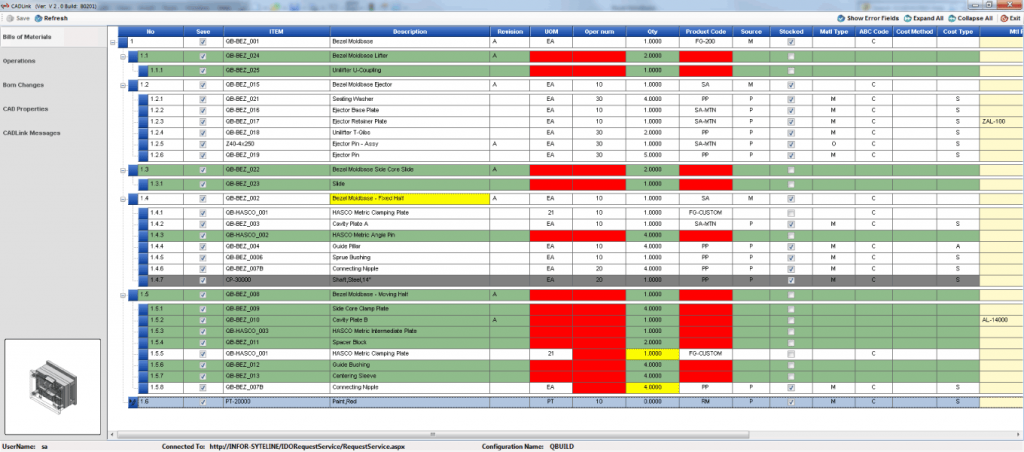
Use a color-coding system within your BOM grid to rapidly see findings and required actions to submit into SAP ERP.
Green Fields – These represent new sections that are created in your SAP ERP Item Master.
Yellow Fields- Data discrepancies between CAD and SAP, such as description or BOM quantity, are highlighted.
Blue Fields are manual pieces that aren’t in the CAD BOM but uploaded to CADLink.
Grey fields represent Parts to be removed from your SAP ERP BOM.
CADLink displays Item Code, Item Name, Item Group Code, and other information from your SAP ERP system and the CAD model. The data on the interface will be editable by the designer. The data in the SAP system and the CAD drawing/model will be synchronized and updated when you save.
CADLink uses the assembly model or drawing’s bill of materials to populate the fields. Changing the BOM in your CAD system is the only way the engineer may add or alter the bill of materials information. CADLink ensures that your CAD and SAP ERP systems share the same data. SAP database will be updated with the model information, including the quantity, part number, and so on, when the model is saved.
In CADLink, manual parts can be added and saved in the SAP ERP. This part’s attributes can be set in CADLink and pushed into the M3 BOM. (For example, paint, adhesives, and packaging.)
The user can observe the changes committed to the SAP BOM when CADLink is saved on a dedicated tab in CADLink. Before saving, this window can be exported as an Excel or PDF file.
Users can access all other item properties that aren’t currently mentioned without leaving CADLink.
